
UniFi Configured So The Next Update Does Not Undo It
Dream Machines, Security Gateways, the Enterprise Fortress Gateway, EdgeRouters, switches and access points. Set up remotely with the VLANs separated properly, the wifi planned around your building rather than guessed at, and firewall rules written so somebody can still read them in a year.
The hardware is genuinely good value and it behaves differently from anything else. Settings move between firmware versions, tunnels that ran for months come back after an update with something quietly changed, and half the guides online describe a controller layout that no longer exists. Knowing where things went is most of this job.
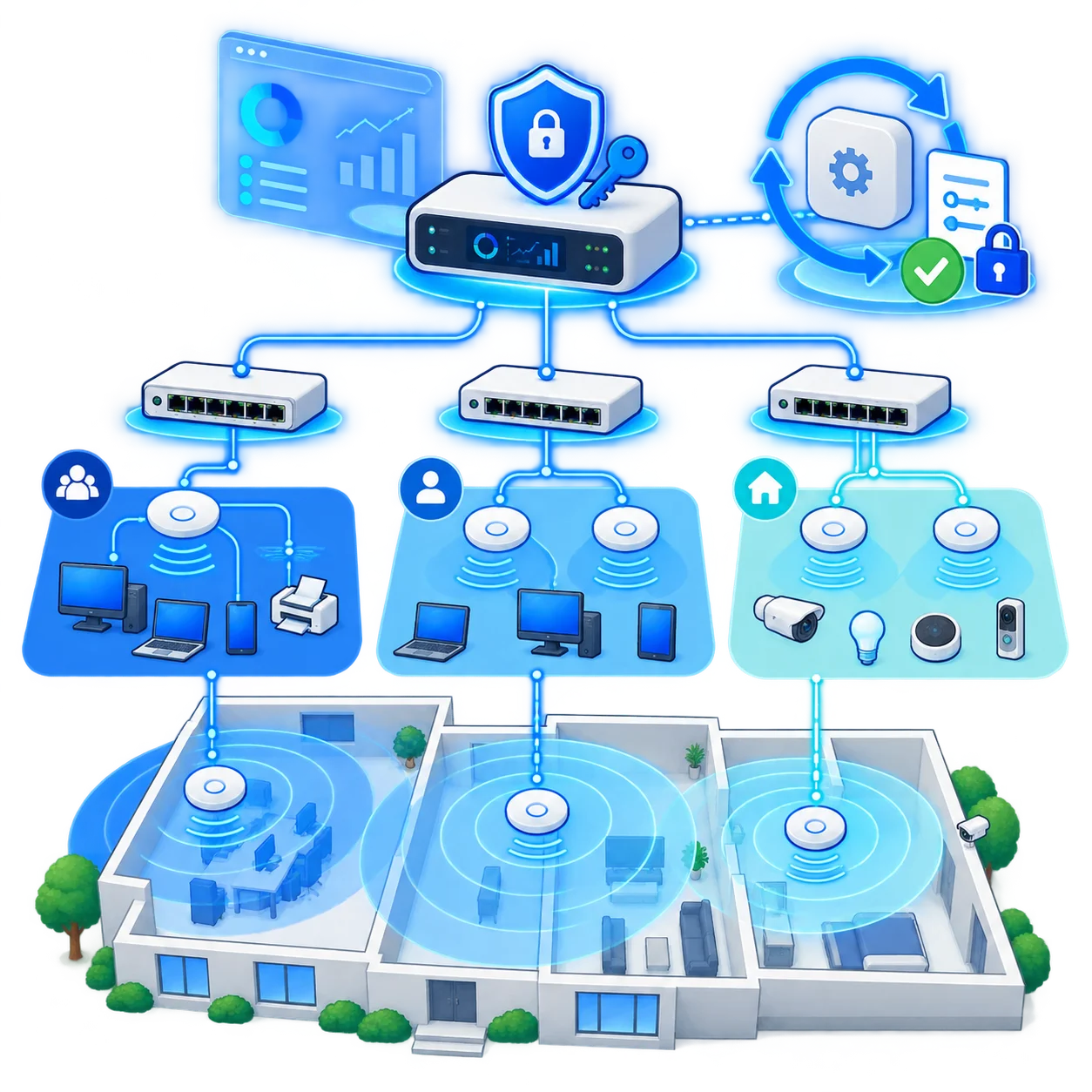
What The Work Covers
Six kinds of job, and most sites need two or three of them rather than all six. A cupboard of boxes still in their packaging and a network that has grown badly for four years are very different afternoons, so the first conversation is mostly about working out which one you have.
A Network Set Up From Scratch
Controller running somewhere sensible, every device adopted, VLANs planned before anything is created, and addressing that leaves room to grow. Naming applied from the first device, since that is the part nobody goes back and fixes once there are thirty of them.
Coverage Planned Around The Building
Channels and transmit power set for how your walls actually behave rather than left on automatic, band steering and roaming tuned so phones hand over cleanly, and separate networks for staff, guests and everything else. More access points is usually the wrong answer, and turning the power down is often the right one.
VLANs That Keep Things Apart
Cameras, printers, tills, guest wifi and the machines people work on, each on their own network with rules between them. Trunks and switch ports configured properly, so a camera cannot see your accounts and a guest cannot see anything at all.
Firewall Rules And Hardening
Rules written on a default of deny with the exceptions explained, management access taken off the internet, remote access done through a tunnel rather than a forwarded port, and the inspection features switched on only where the hardware can carry them without slowing everything down.
Sites And Staff Joined Up
Tunnels between offices, remote access for people working away, and routing that recovers when a link drops. Where the far end is a FortiGate, a MikroTik or something else entirely, the settings get matched on both sides rather than guessed at from one.
Something That Stopped Working
Devices that will not adopt, an update that changed a setting nobody touched, wifi that drops in one corner every afternoon, a controller nobody has the password for. Diagnosed from the logs rather than by resetting everything and starting again.
The Hardware We Work On
The whole Ubiquiti range and the older Edge line alongside it. If you have a mix of generations, that is normal and it is usually where the interesting problems live.
- Dream Machines. The all in one boxes, including the Pro and rack mounted versions, with the controller built in.
- Security Gateways and the Fortress Gateway. The older USG and the newer EFG, including the throughput limits worth knowing before you turn inspection on.
- EdgeRouter and EdgeSwitch. The command line side of the family, where the routing, NAT and VPN work happens outside the controller.
- Switches and access points. VLANs, LACP, quality of service, power over ethernet budgets, and wifi across the current and previous generations.
- The controller itself. Hosted on the hardware, on a small server of your own, or on a machine we set up for it, whichever suits how you work.
How A Job Runs
Everything is done remotely, and on a live site the risk is the timing rather than the configuration. Most of these are finished in a session or two once the access is sorted.
We Look Before We Touch Anything
Read access to the controller, or a config backup if that is easier, plus a rough idea of the building and how many people are on it. On a site that has grown badly for a few years, working out what each rule and each network was originally for takes longer than changing any of them.
You See What Is Going To Change
What is being added, what is coming out, and what each removal was doing. Anything we are not sure about stays where it is and gets flagged instead, because on a mixed network the rule nobody remembers occasionally turns out to be holding up the card machine.
Backup Taken, Then Changes Go In
A controller backup and a copy of the device configs first, so there is always a way back. Then changes go in a few at a time inside a window you pick, rather than as one large edit that has to be unpicked at nine in the morning when the office fills up.
Tested From The Networks It Affects
Wifi checked from the far corners rather than from next to the access point, each VLAN tested for what it should and should not reach, and any tunnel confirmed in both directions. A controller showing everything green has told you almost nothing about what a laptop in the back office can actually do.
Written Down So The Next Update Is Survivable
Which settings matter, why the exceptions exist, and what to check after a firmware update. That last part is specific to this hardware, because updates do occasionally reset or move something, and knowing the two places to look turns a lost morning into five minutes.
What You Get At The End
- A controller backup and every device configuration saved.
- A note of what each network and rule group is for.
- The wifi settings chosen and why, so nobody undoes them later.
- A list of what was removed, with the reasons.
- The post update checklist for this specific site.
What Sits Outside This
- Anything needing hands on site, since this is remote work.
- Cabling, mounting and physical installation.
- Hardware supply. We sell none of it and take nothing from what you buy.
- Ubiquiti support cases, which stay under your own account.
- Ongoing management, available as an arrangement rather than assumed.
Packages And What They Cost
Priced per job rather than by the hour, so nobody is watching a clock while a controller updates. Pick by how many devices are involved and whether this is a build, a tidy up or something that broke.
Setup Or Fix
One gateway and a handful of devices, configured properly or repaired. Covers most homes, small offices and single unit shops.
- Controller set up wherever suits you
- Every device adopted and named consistently
- VLANs for staff, guests and devices
- Wifi channels and power set for your building
- Firewall rules on a default of deny
- Management access taken off the internet
- Firmware brought current and backed up
- Written notes plus the post update checklist
Full Site Build
A whole office or a larger building, planned rather than assembled, with the wifi laid out around how the space is actually used.
- Everything in Setup Or Fix
- Wifi coverage planned across the floorplan
- Roaming tuned so phones hand over cleanly
- Switch ports, trunks and power budgets sorted
- Cameras, printers and tills on their own networks
- One VPN included, site to site or remote access
- Existing mess cleaned up with removals approved by you
- Everything tested from the far corners before handover
Multi Site Or Complex
Several locations, more than fifteen devices, mixed vendors at the far end, or routing that has outgrown the controller.
- Any number of sites and devices
- Tunnels between locations, mixed vendors included
- BGP and OSPF where the network genuinely needs it
- Failover between two internet connections
- A controller moved off a gateway onto its own machine
- Sites inherited from an installer who kept the keys
- Documentation your own people can work from
Added To Any Package
- Each additional device beyond the package $50
- A wifi survey and coverage plan $100
- Moving the controller to its own server $80
- Recovering a site you have no password for $150
- Checked over after each firmware update, monthly $300 / mo
We do not sell hardware and take nothing from what you buy, so where the kit you already own is enough, that is what you will be told. Where something genuinely needs replacing, you will hear which one part and why rather than a list of everything.
Tell Us What You Have And What Is Wrong With It
Which boxes are on the wall, roughly how big the space is, and whether this is a new build, a tidy up or something that stopped working. A screenshot of the controller devices page answers most of that on its own. If a firmware update broke something last week, say so and it goes to the front of the queue.
Talk about your network